
Custom Tasks can be created within your Organisation these tasks are not standard in Tio but something you perform on a regular basis such as checking the fridge temperature.
These can be set with a frequency and work in exactly the same way as a standard recurrent task giving you the option of entering a due date then when the task has been fulfilled the next due date will automatically calculate. One off tasks can also be added within a premises for your custom task for any ad hoc work.
Custom Tasks can be created using a standard Tio Topic if you need two tasks of different frequencies for the same topic.
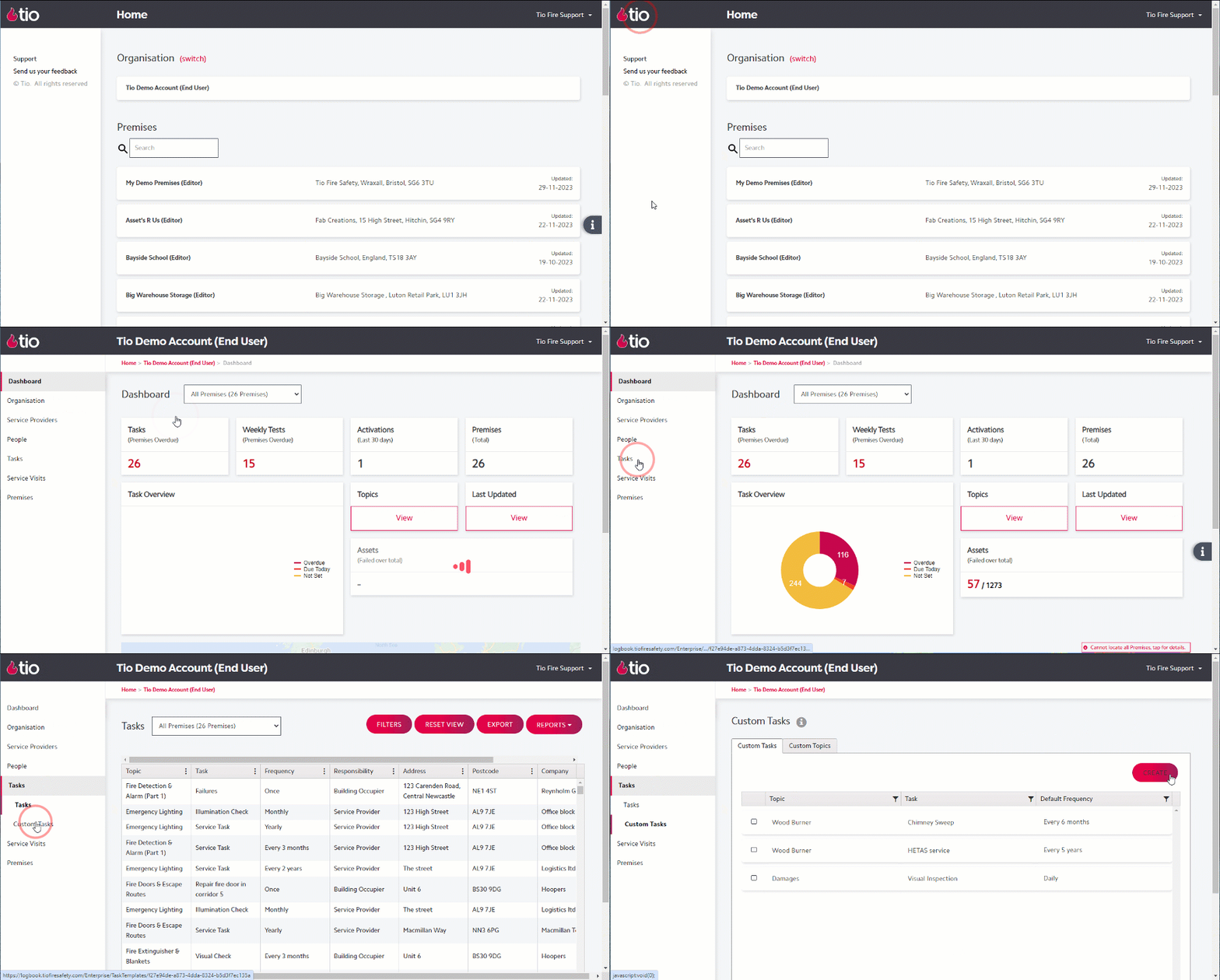
Setting Up Custom Tasks:
- From the Tio home page select your Organisation (see above)
- Select Tasks -> Custom Tasks
- Select the Create button to create a task, if this task is for a new topic the Custom Topic will also be created and can be managed in each premises. The following screen will appear:
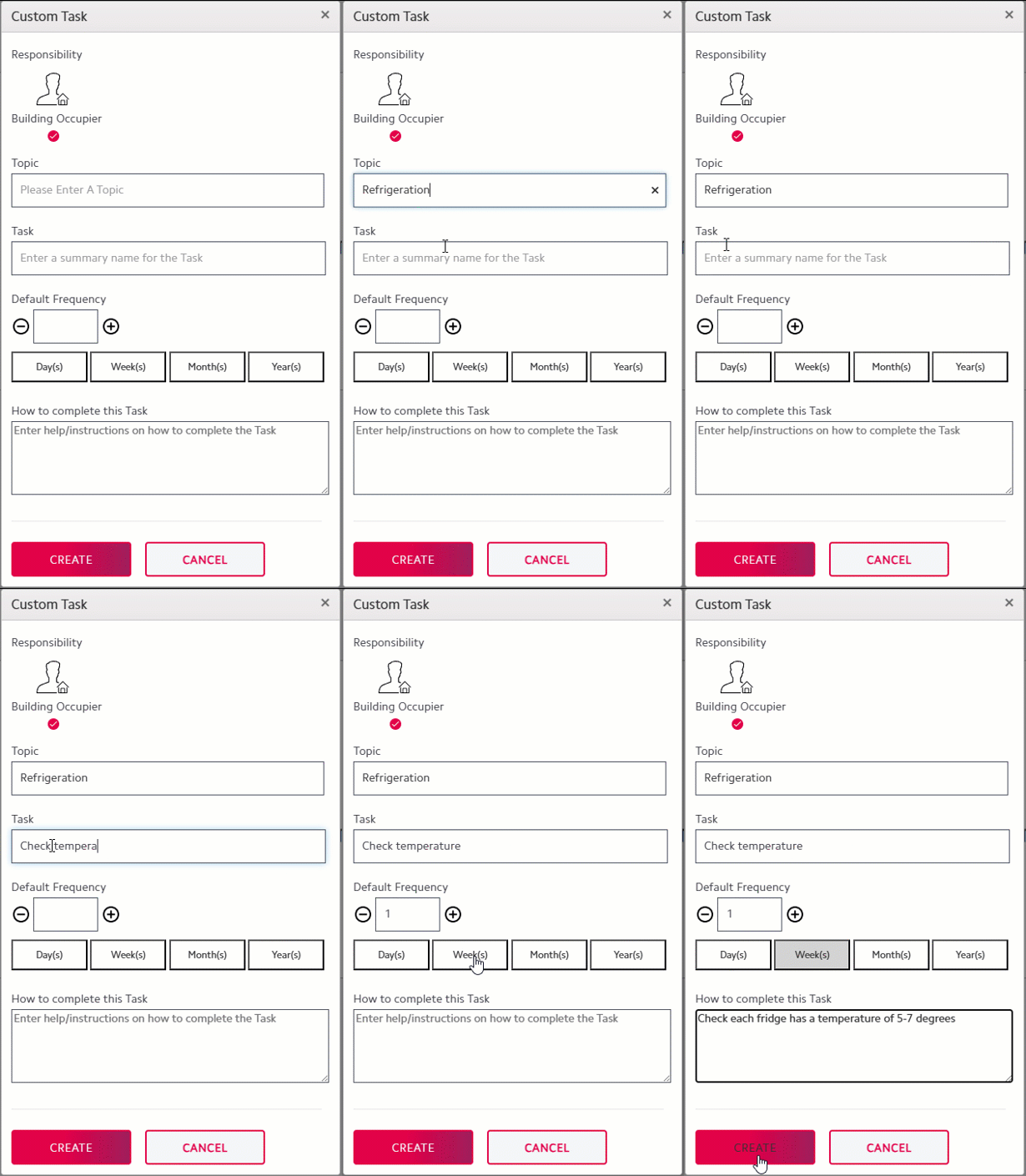
- Enter a Topic name which will appear on the Manage-Details page in each premises to allow you to tick if this task is needed in each one. The Topic will also be created on the Topic Tab, for example Refrigeration.
- If an additional recurrent task is required for a Tio standard topic then start typing the topic name to find it.
- Enter a Task name, for example Check Temperature is 5-7 degrees.
- Set the Default Frequency, if you have to check the temperature daily then enter 1 and then choose Days etc
- If you want to type any further instructions on how to complete the task enter them in the last section and then select the Create button.
Once the Custom Task has been created you will be able to tick this topic for each premises that has that enabled. For more information on how to assign a topic to a premises click here